
How do I add icon to JTabbedPane tabs?
The following code snippet demonstrates how to create a JTabbedPane component with image icons attached on their tabs. There are two steps that we need to do to achieve this. First we need to load the image icon and after that we need to attach these icons to the tabs. To create or load an […]
Article by Wayan · Source: Kode Java ↗
The following code snippet demonstrates how to create a JTabbedPane component with image icons attached on their tabs. There are two steps that we need to do to achieve this. First we need to load the image icon and after that we need to attach these icons to the tabs.
To create or load an image icon simply create an instance of ImageIcon class. Pass the information about the image location to the constructor of the ImageIcon. In the example below I provide the location of the image using the getClass().getResource() method which will load the images from resources directory.
To add a new tab with image icon attached to the tabs of a JTabbedPane component we are using the addTab(String, Icon, Component) method. The second argument in this method is the image icon of the tab.
Let’s see the code snippet below:
package org.kodejava.swing;

import javax.swing.*;
import java.awt.*;
import java.util.Objects;

public class TabbedPaneWithIcon extends JPanel {
    private TabbedPaneWithIcon() {
        initializeUI();
    }

    private static void showFrame() {
        JPanel panel = new TabbedPaneWithIcon();
        panel.setOpaque(true);

        JFrame frame = new JFrame("Tabbed Pane With Icon Demo");
        frame.setDefaultCloseOperation(WindowConstants.EXIT_ON_CLOSE);
        frame.setContentPane(panel);
        frame.pack();
        frame.setVisible(true);
    }

    public static void main(String[] args) {
        SwingUtilities.invokeLater(TabbedPaneWithIcon::showFrame);
    }

    private void initializeUI() {
        this.setLayout(new BorderLayout());
        this.setPreferredSize(new Dimension(500, 200));

        JTabbedPane pane = new JTabbedPane();

        ImageIcon tab1Icon = new ImageIcon(Objects.requireNonNull(
                this.getClass().getResource("/images/test-pass-icon.png")));
        ImageIcon tab2Icon = new ImageIcon(Objects.requireNonNull(
                this.getClass().getResource("/images/test-fail-icon.png")));
        ImageIcon tab3Icon = new ImageIcon(Objects.requireNonNull(
                this.getClass().getResource("/images/test-error-icon.png")));

        JPanel content1 = new JPanel();
        JPanel content2 = new JPanel();
        JPanel content3 = new JPanel();

        pane.addTab("Pass", tab1Icon, content1);
        pane.addTab("Fail", tab2Icon, content2);
        pane.addTab("Error", tab3Icon, content3);

        this.add(pane, BorderLayout.CENTER);
    }
}
The directory structure of the project:
kodejava-swing
├─ pom.xml
└─ src
   └─ main
      ├─ java
      │  └─ org
      │     └─ kodejava
      │        └─ swing
      │           └─ TabbedPaneWithIcon.java
      └─ resources
         └─ images
            ├─ test-error-icon.png
            ├─ test-fail-icon.png
            └─ test-pass-icon.png
And here is the result of the code snippet above.
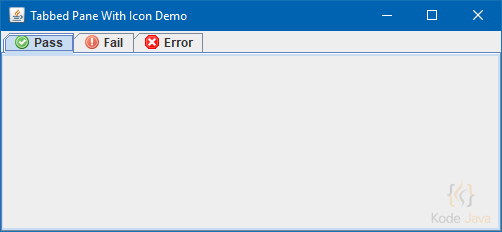
JTabbedPane Tab with Icon Demo
Comments 0
Share your questions, experiences, or feedback about this article.
Sign in with Google to leave a comment.
Sign in with Google
No comments yet. Be the first to share your feedback.